
Getting Started
Build Auto Mode
Build auto mode turns one prompt into a complete multi-part assembly. QuantCAD plans the parts, builds all of them in one action and checks the result before it finishes.
Last updated
What Build auto mode does
You describe the whole product once. QuantCAD then:
- • Plans the parts and how they fit together.
- • Builds every part of the assembly in a single action, with no approval needed between steps.
- • Checks the finished assembly and reworks parts that fail the check before the run ends.
Every part is a B-rep solid, so the result exports to STEP and STL like any other product and opens as solids in other CAD tools. Build auto mode is included on every plan, including Free.
Auto or manual
Build mode has two ways to create a new product:
Build - Auto
The whole product from one prompt. QuantCAD plans, builds and checks every part in one action.
Selected by default for new products. Best when you know what the finished product should be.
Build - Manual
The product part by part. You review and confirm each step before the next part is built.
Best when you want to shape each part yourself as you go.
How to start an auto build
Open New Product
From the dashboard sidebar, click New Product. The page asks “What do you want to build?”
Check the mode
At the bottom of the prompt box, the mode switcher shows Build - Auto. It is selected by default. Choose Build - Manual instead if you want to go part by part.
Describe the whole product and submit
Write the full product in one prompt, then press ⌘ Enter (or Ctrl Enter). A status line in the workspace shows progress while the assembly is built.
Writing the prompt
In auto mode, a one-line prompt is enough to get a complete product, as the worked examples below show. The more of these four things you include, the closer the first result is to what you have in mind:
- • What the product is and what it is for.
- • The parts it is made of, including the ones inside.
- • How the parts connect or where each one sits.
- • The sizes that matter, with units: overall size, wall thickness, holes and openings.
A portable Bluetooth speaker.
Cylindrical body 180 mm long and 70 mm in diameter, with 2 mm walls.
A grille along the front of the body, and an end cap at each end.
A 10 mm power button on the right end cap and a USB-C port on the left end cap.
Inside: a 50 mm driver behind each end cap, a battery pack and a circuit board between them.
More patterns for sizes, features and constraints are in Writing Good Prompts.
Worked examples
Three runs in Build auto mode, from a single part to a complex product. Each one lists what came out, and you can download the STEP and STL files to inspect the solids in your own CAD tool or slicer. The smartwatch and laptop prompts are one line each: QuantCAD decides the parts and their sizes.
Simple part: wheel bolt
Build a wheel bolt M14×1.5×45, ball seat R14, property class 10.9, hex 17 mm, zinc-flake coated, tightening torque 160 Nm.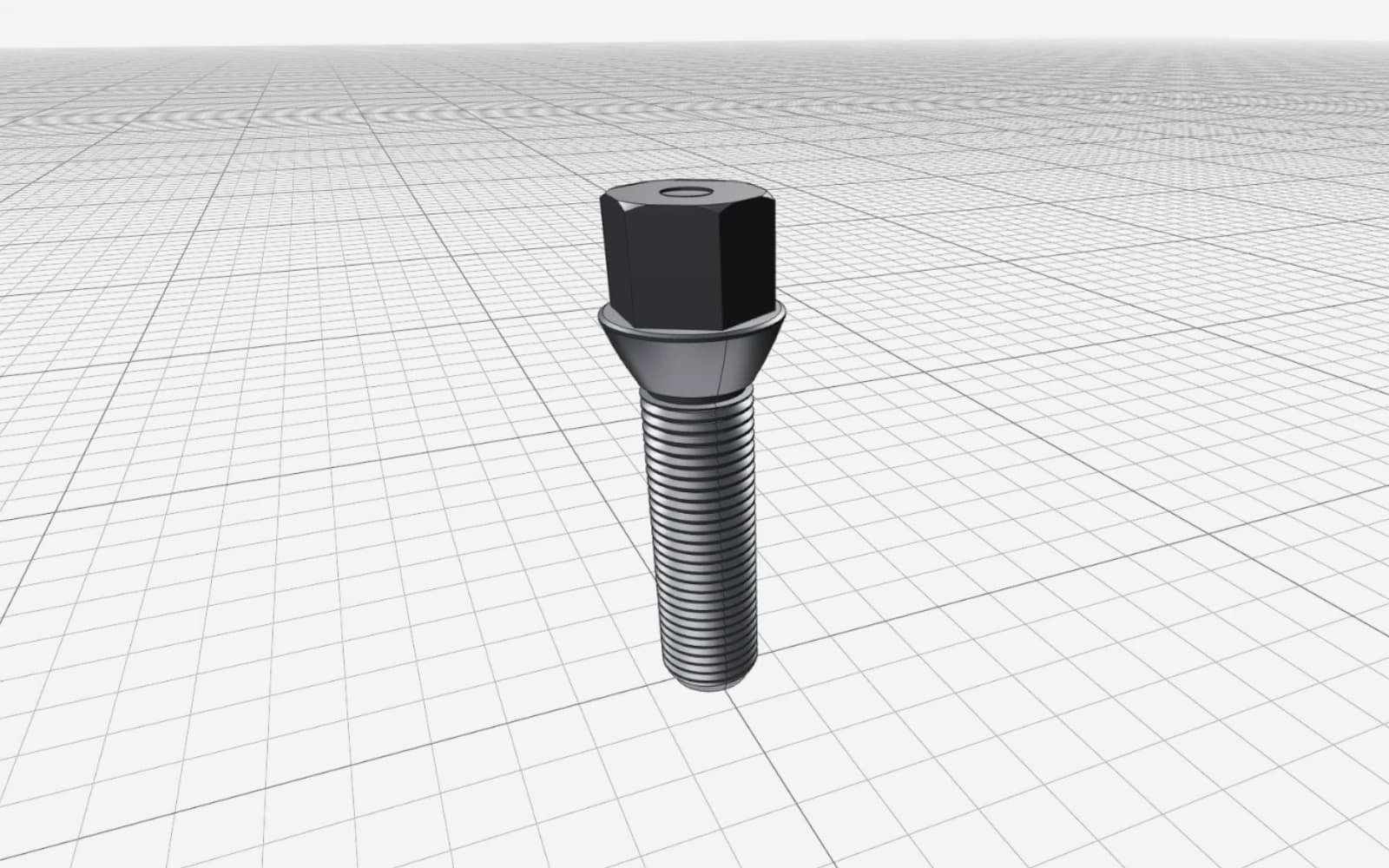
Result
- Parts
- 1 solid
- Key dimensions
- M14 x 1.5 thread, 45 mm long, R14 ball seat, 17 mm hex, zinc-flake coated, tightening torque 160 Nm
- How it was built
- Built in auto mode, one prompt, no follow-up prompts.
- Time
- 42 seconds
- Credits used
- 8
- STEP file
- AP242, 1 solid
- STEP file size
- 293 KB
- STL file size
- 8,5 MB
Mid-size assembly: health and fitness smartwatch
Build a modern smartwatch that can be used as a health and fitness tracker.Result
- Parts
- 36 parts: Watch Case Body, Logic Board Assembly (SiP), Battery Pack (Li-ion Cell), Taptic Engine (Linear Actuator), ... etc.
- Overall size
- 38 x 12 x 45 mm
- How it was built
- Build auto mode, from one prompt
- Time
- 13 minutes 48 seconds
- Credits used
- 14
- STEP file
- AP242, 36 solids
- STEP file size
- 7,6 MB
- STL file size
- 18,6 MB
Complex product: 15-inch laptop
Build a first draft of a modern 15-inch laptop that I can later iterate on.Result
- Parts
- 46 parts: Base Chassis Lower Case, Internal Magnesium Midframe, Dual-Fan Heatpipe Cooling Module, Lithium Battery Pack, ... etc.
- Overall size
- 340 x 225 x 20 mm
- How it was built
- Build auto mode, from one prompt
- Time
- 14 minutes 34 seconds
- Credits used
- 22
- STEP file
- AP242, 46 solids
- STEP file size
- 26,1 MB
- STL file size
- 39,5 MB
What it costs
An auto build is one up-front charge for the whole assembly: 8, 14 or 22 credits, depending on its size. The checks it runs, and any rework of parts that fail them, are included in that charge.
Credits are reserved when the run starts and charged when it completes. If you stop a run, the reserved credits are returned to your account. See Credits & Plans for what your credits cover on each plan.
After the build
- • Review the assembly in the 3D viewer: measure, clip and hide parts.
- • Continue in the product chat. Use Build to change a part and Ask to check sizes or fits without changing anything. Each Build creates a new revision.
- • Export the assembly as STEP for CAD tools or STL for 3D printing.
Good to know
- • You choose auto or manual when you create a product. Inside an existing product, the chat offers Build and Ask.
- • A complex assembly can take several minutes. The status line shows what QuantCAD is working on.
- • Check dimensions, tolerances and fits in the viewer before you manufacture anything.
See Build vs Ask for how the prompt modes compare.