AI CAD for beginners
You do not need CAD training or coding skills to make a 3D CAD model. In QuantCAD you describe what you want in plain words. In Build auto mode, one prompt gives you a complete model, from a single part to a full product with every part inside, ready to download as STEP or STL. The Free plan needs no credit card, and you can start your first build in under two minutes.
Last updated
How do you make your first 3D CAD model?
- 1
Sign up for free
Create an account with no credit card. There is nothing to install: QuantCAD runs in your web browser on a computer, tablet or phone.
- 2
Click New Product and keep Auto selected
Build auto mode is selected by default. It is the quickest way to start, because one prompt gives you the whole model.
- 3
Choose a reasoning level, or keep High
Next to the mode menu, the QuantCAD AI control sets how much QuantCAD plans and checks for each prompt. Low is the fastest and uses the fewest credits, good for a quick single part. High, the default, suits most products. Max, on Pro and Business, plans the most for large products with many parts. You can change it for every prompt, so you decide the balance between speed, detail and credits.
- 4
Describe what you want in plain words
One sentence is enough to start, such as "Build a modern smartwatch that can be used as a health and fitness tracker." Add sizes when they matter to you.
- 5
Look at the result, change it and download it
Rotate the model in the 3D viewer, ask for changes in the chat, then download STEP for other CAD tools or STL for a 3D printer.
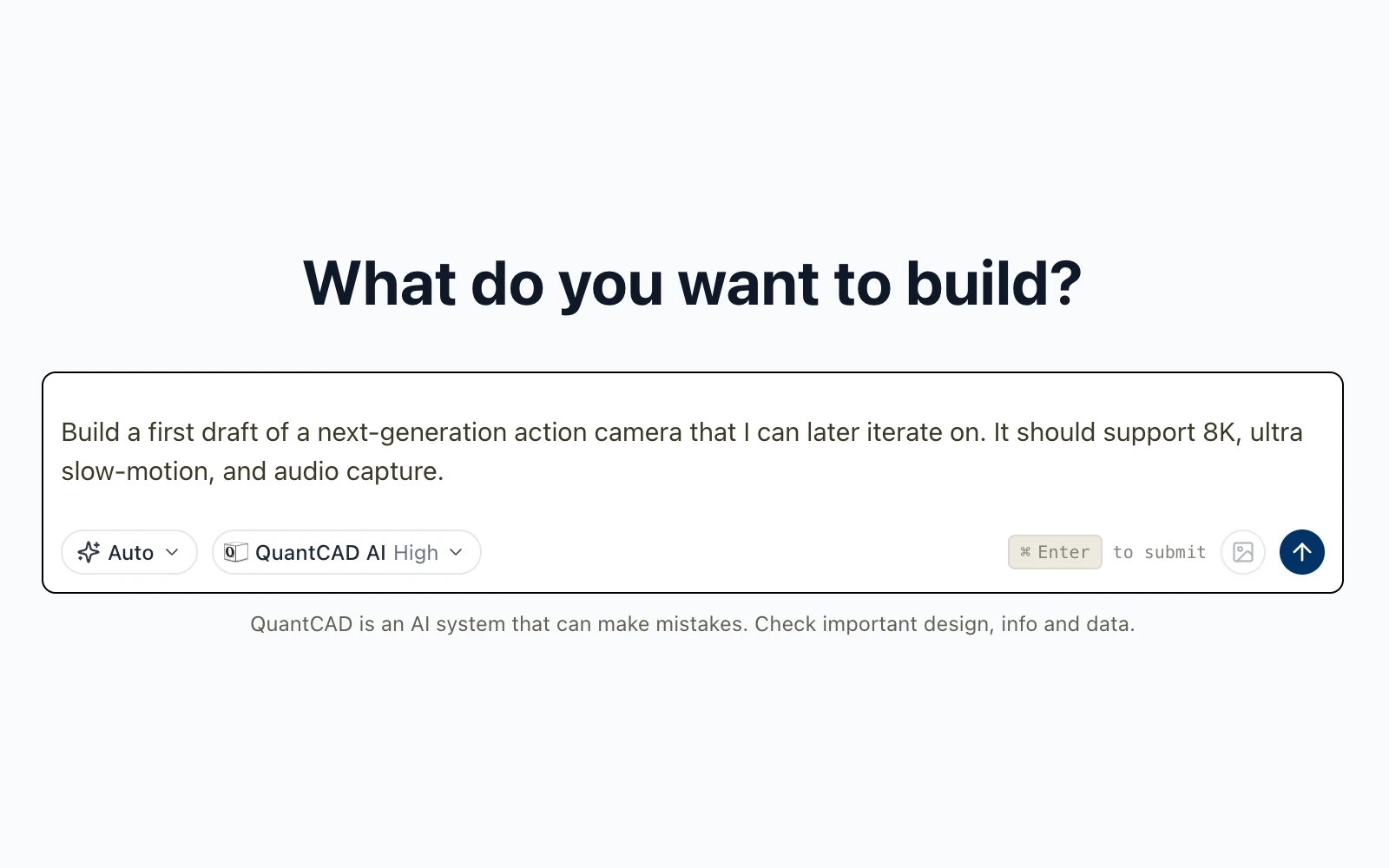
Build auto mode: one prompt, a complete model
Build auto mode is made for getting started fast. You do not plan parts, pick tools or build anything step by step. You describe the whole object once. Build auto mode turns one prompt into a complete multi-part assembly of B-rep solids, including housings, internal parts, fasteners and wiring. It plans the parts and how they fit together, builds each part, then checks the whole assembly for interference between parts, floating or unseated parts, gaps between mating parts and parts outside the housing, and reworks the parts that fail. It all runs in one action, for one up-front charge.
It works for a single part and for a full product. Our published examples include a wheel bolt built as 1 solid in 42 seconds, a 36-part smartwatch in 13 minutes 48 seconds and a 46-part 15-inch laptop in 14 minutes 34 seconds, each from one prompt with no follow-up changes. The STEP and STL files are in the Build auto mode worked examples.
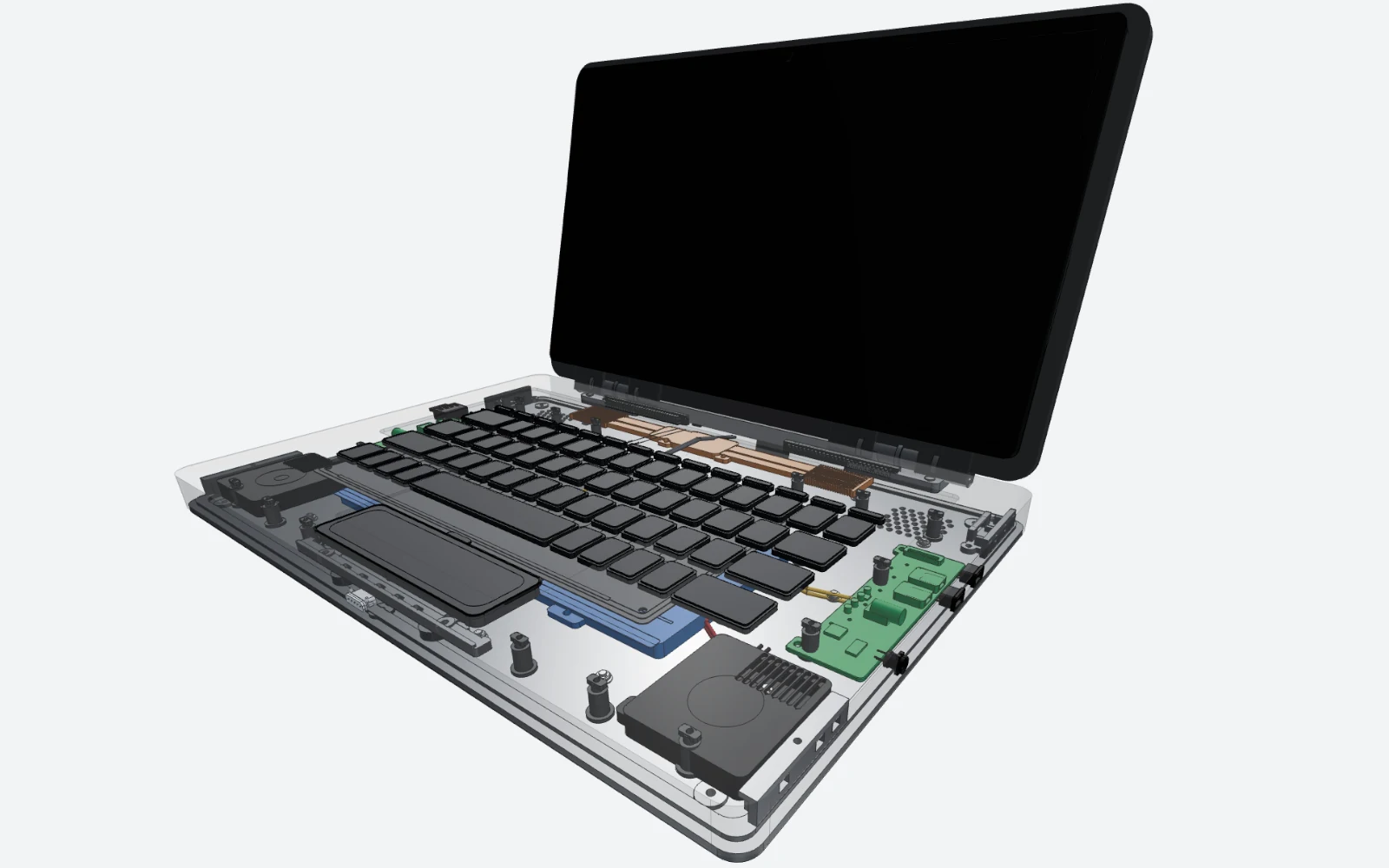
What should you write in your first prompt?
Say what the object is and what it is for. One line is enough to get a complete model, and QuantCAD fills in the parts and sizes you leave out. When the object has to fit something, such as a screw, a circuit board or a shelf, add the sizes that matter in millimetres.
A complete product, in one line
Build a modern smartwatch that can be used as a health and fitness tracker.QuantCAD decides the parts and their sizes. This prompt gave a 36-part assembly.
Another product, in one line
Build a first draft of a modern 15-inch laptop that I can later iterate on.This prompt gave a 46-part laptop in under 15 minutes.
A single part, with the sizes that matter
A wall-mount bracket, 80 mm wide x 60 mm tall x 4 mm thick. Two M4 through-holes 60 mm apart, 10 mm from the bottom edge. Add a 5 mm fillet on the outer corners.When the part has to fit something, give the sizes that matter.
Each build is generated fresh, so the same prompt can give a different result from one run to the next, and results keep improving as QuantCAD is updated.
More ways to describe sizes, features and parts are in Writing good prompts.
How do you change the model without CAD skills?
You change it the same way you made it: by describing what should be different. Write “make the walls 3 mm thick” or “move the button 5 mm closer to the edge” in the chat. Each change is saved as a revision, so you can always go back to an earlier version.
- Switch the chat to Ask mode to ask questions about your design without changing it, such as whether a part will fit.
- Use the 3D viewer to measure distances and angles, hide parts, and see inside with X-ray mode or a clipping plane.
- Prefer to go one part at a time? Build manual mode suggests a plan and builds one step at a time.
See Ask mode and Build manual mode for more.
What can you do with the model?
- Download STEP (AP242, in millimetres) and open it as a solid in SolidWorks, Fusion, Onshape, FreeCAD and other CAD tools.
- Download STL in Draft, Normal or High quality for your 3D printer's slicer.
- Send the STEP file to a supplier for a quote or for CNC machining.
- Use what you make commercially on every plan, including Free, with no watermarks.
Every part is a solid with exact faces and edges, not a shell of triangles, so a 5 mm hole is exactly 5 mm. More on the difference is in Text-to-CAD vs text-to-mesh.
What does it cost to start?
Nothing. The Free plan needs no credit card and gives you 120 credits at signup and 100 every month, on the same AI models as the paid plans. Build auto mode and STEP and STL exports are included, and downloads are never limited or charged.
A complete model in Build auto mode is one up-front charge, typically 80, 140 or 220 credits depending on its size, and the checks are included. These are typical amounts, not fixed prices. The cost of each prompt depends on how complex the request is and on its reasoning level, so it can vary from prompt to prompt. The Usage page in your dashboard shows what each prompt cost. On the Free plan, your models and project names may appear in our public catalog; paid plans keep every project private. See Pricing for the paid plans.
When is traditional CAD still the better tool?
QuantCAD does not make 2D drawings or GD&T today. If you need those, or want to set detailed constraints by hand, download the STEP file and finish the part in a tool such as Fusion, SolidWorks or Onshape. You can start in QuantCAD and finish there.
Frequently asked questions
Do I need CAD experience to use QuantCAD?
No. You describe what you want in plain language and QuantCAD builds the 3D CAD model for you. You review it in a 3D viewer and ask for changes in the same chat, without sketches, constraints or menus to learn.
Do I need to know how to code?
No. QuantCAD writes and runs everything behind the model itself. You only write a description of what you want, in plain words.
What is the easiest way for a beginner to make a 3D CAD model?
Use Build auto mode, which is selected by default for new products. You describe the whole thing once and QuantCAD does the rest. Build auto mode turns one prompt into a complete multi-part assembly of B-rep solids, including housings, internal parts, fasteners and wiring. It plans the parts and how they fit together, builds each part, then checks the whole assembly for interference between parts, floating or unseated parts, gaps between mating parts and parts outside the housing, and reworks the parts that fail. It all runs in one action, for one up-front charge.
How do I choose between speed, detail and cost?
Pick a reasoning level for each prompt. Reasoning levels let you choose, for each Build prompt, how much planning and checking QuantCAD AI does: Low, Medium, High or Max. Lower levels finish sooner and can use fewer credits. Higher levels plan more deeply and spend more effort on detail and checks. High is the default. Low, Medium and High are on every plan, and Max is included with Pro and Business. For a first model, keep High, then try Low for quick changes.
Can a beginner make a full assembly with many parts?
Yes. One prompt in Build auto mode can give a complete assembly with housings, internal parts, fasteners and wiring. Our published examples include a 36-part smartwatch and a 46-part 15-inch laptop, each from a one-line prompt.
How long does it take to make my first model?
Signing up and starting your first build takes under two minutes. A single part can be ready in under a minute: our wheel bolt example took 42 seconds. A complete product with dozens of parts takes a few minutes, for example 13 minutes 48 seconds for the 36-part smartwatch.
Is QuantCAD free for beginners?
Yes. The Free plan needs no credit card and gives you 120 credits at signup and 100 every month, on the same AI models as the paid plans. It includes Build auto mode and STEP and STL exports, and it is a plan, not a time-limited trial.
What should I write in my first prompt?
Say what the object is and what it is for. One line is enough to get a complete model. If the object has to fit something, add the sizes that matter, such as the overall size, wall thickness or hole sizes, in millimetres.
Can I 3D print what I make?
Yes. Download STL in Draft, Normal or High quality and open it in a slicer such as Cura, PrusaSlicer, Bambu Studio or OrcaSlicer. Every plan, including Free, allows commercial use with no watermarks.
What is the difference between a CAD model and a regular 3D model?
Many 3D models are meshes: shells made of small flat triangles, made for looking at. A CAD model is a solid with exact faces and edges, so a 5 mm hole is exactly 5 mm and you can measure and change it. QuantCAD makes CAD models, which is why the files open in other CAD tools and work for manufacturing.
Related guides
Quickstart
Your first product in six steps, with example prompts.
Build auto mode guide
How one prompt becomes a checked model, with STEP and STL files to download.
Writing good prompts
How to describe sizes, features and parts when they matter.
AI CAD for 3D printing
Printable parts with exact dimensions, exported as STL.
Text-to-CAD vs text-to-mesh
Why solid CAD models, not triangle meshes, are what you can edit and make.
Compare AI CAD tools
How QuantCAD compares with other AI CAD tools and traditional CAD.