Summary answer: Choosing the right AI CAD tool depends on what you need to build. To get a new part or a multi-part assembly from a text prompt, as a STEP file that opens as a solid in other CAD tools; use a text-to-CAD tool such as QuantCAD, Zoo Design Studio, BuildCAD AI or TextoCAD. If you already work in Fusion, SOLIDWORKS or Onshape, start with the AI inside that tool or a copilot such as Adam. To search your company's existing parts, documents and calculations, look at Leo AI. After researching AI CAD tools, these are the 9 tools that stood out for us in 2026.
We build QuantCAD. It is listed first and judged on the same criteria as every other tool, with the same headings, the same level of detail and its limits stated. Every price and feature below comes from the vendor's own website, documentation or pricing page, checked and verified on 29 October 2026.
Which AI CAD tool is best for what?
- QuantCAD: best for B-rep parts and multi-part assemblies from a text prompt, with STEP export.
- Zoo Design Studio: best for a full CAD application with an AI agent and editable CAD code.
- BuildCAD AI: best for functional 3D prints with slider edits and 3MF export.
- TextoCAD: best for free use with your own AI API key, or from inside Claude or ChatGPT.
- Adam: best for AI edits inside Onshape, Fusion or SOLIDWORKS.
- Autodesk Fusion: best for Fusion users who want an AI assistant inside the app.
- SOLIDWORKS: best for SOLIDWORKS teams that want AI help with drawings, fasteners and assembly structure.
- Onshape: best for professional CAD in the browser, with a free plan for personal projects.
- Leo AI: best for engineering teams that want answers and part search across their own design data.
When QuantCAD is not the right pick: you need 2D drawings or GD&T. QuantCAD does not do these today. Use traditional CAD for that work, or export STEP from QuantCAD and finish the part there.
Free plans and pricing compared (checked 29 October 2026)
| Tool | Best for | Free plan | Paid plans from |
|---|---|---|---|
| QuantCAD | Parts and assemblies from a prompt, with STEP export | Yes, with daily credits for the first 2 months. Credits do not expire. | $29/month, or $26/month billed annually |
| Zoo Design Studio | A full CAD app with an AI agent | Yes, 20 agent minutes a month | $20/month |
| BuildCAD AI | Functional 3D prints with sliders | Yes, 200 AI credits to start | $12/month |
| TextoCAD | Free use with your own AI key | Yes, 2 generations, then free with your own key | No subscriptions |
| Adam | AI edits inside existing CAD tools | Yes, a light daily quota | $40/month |
| Autodesk Fusion | An assistant inside Fusion | Personal, non-commercial use only | $85/month or $680/year |
| SOLIDWORKS | AI help inside SOLIDWORKS | No | $2,820/year |
| Onshape | Professional CAD in the browser | Yes, non-commercial, public documents | $1,500 per user per year |
| Leo AI | Answers and part search across your data | Free trial | Not published |
Prices are in US dollars, before tax. Most vendors also sell team and enterprise plans.
What does each AI CAD tool output?
| Tool | Type | Geometry | Exports | Assemblies |
|---|---|---|---|---|
| QuantCAD | Text-to-CAD platform in the browser | B-rep solids on the Open CASCADE kernel | STEP (AP242, mm), STL | Yes, planned and built from one prompt |
| Zoo Design Studio | AI-native CAD app, desktop and browser | Solid models from KCL code | STEP, STL, OBJ, glTF/GLB, PLY | Yes, with designs export as STEP assemblies |
| BuildCAD AI | Text-to-CAD and image-to-CAD agent in the browser | Parametric models with sliders | STEP, STL, 3MF | Parts and assemblies, per its FAQ |
| TextoCAD | Text-to-CAD in the browser, on your own AI key | Parametric models from CadQuery scripts | STEP, STL | Not described on its site |
| Adam | Copilot inside existing CAD tools, plus the CADAM app | Native features in your CAD tool | Your CAD tool's formats; CADAM lists STL | Works with the models in your CAD tool |
| Autodesk Fusion | Traditional CAD with Autodesk Assistant | Native Fusion parametric models | STEP, STL and other formats | Yes |
| SOLIDWORKS | Traditional CAD with AI companions | Native SOLIDWORKS parametric models | STEP, STL and other formats | Yes, with an AI assembly structure generator |
| Onshape | Cloud CAD with an AI help assistant | Native Onshape parametric models | STEP, STL and other formats | Yes |
| Leo AI | Engineering AI assistant | Answers, part search and calculations | Works through your CAD and PDM | Reuses existing parts, per its site |
How did we compare these tools?
We recorded the same facts for every tool, taken from the vendor's own website, documentation and pricing page on 29 October 2026:
- Output: whether the tool produces solid CAD geometry, CAD code, native features inside another CAD tool, or something else.
- Exports: the file formats the vendor lists.
- Assemblies: whether the vendor says the tool handles designs with several parts.
- Runs on: the platforms, hardware and internet connection the vendor lists.
- Price: the free plan and the lowest paid plan, in US dollars.
- Limits: what the vendor says the tool does not do, and what its plan terms restrict.
Every entry uses the same headings and roughly the same length. This is a comparison of documented capabilities and prices, not a benchmark of output quality. To judge output quality yourself, run the five-minute check further down on any tool you are considering.
The tools are grouped by type: text-to-CAD tools first, then copilots and traditional CAD with AI, then engineering knowledge AI. QuantCAD comes first because we build it. General-purpose AI chat assistants and text-to-mesh generators are not included, because on their own they do not produce CAD solids. They are covered in Can an AI chat assistant make a CAD model or a STEP file? and Text-to-CAD vs text-to-mesh. We also left out tools whose AI features were in preview, or not clearly documented, on the day we checked.
1. QuantCAD: best for B-rep parts and assemblies from a text prompt
- What it is: QuantCAD is a browser-based AI CAD platform that builds 3D models from a plain-language description.
- Best for: parts and multi-part assemblies from a text prompt, with a STEP or STL handoff to your CAD tool, supplier or 3D printer.
- Not for: 2D drawings, GD&T, detailed constraints, or editing a CAD file you already have.
- Output: B-rep solids built on the Open CASCADE kernel from the start, not converted meshes.
- Exports: STEP (AP242, in millimetres) and STL in Draft, Normal or High quality.
- Assemblies: yes. Build auto mode plans and builds a whole assembly in one pass; manual mode goes part by part.
- Runs on: a web browser on desktop, tablet or phone, with nothing to install. Needs an internet connection.
- Price: Free with a 5-credit signup bonus and 5 credits a day, up to 25 a month, for the first 2 months. Pro is $29/month and Business is $59/month. Pro and Business use the latest AI models.
- Strengths: no code or CAD experience/training needed, get started within 2 minutes; a product dashboard with lifecycle control from Draft to Released, and a traceable revision for every change.
- Limitations: no 2D drawings; changes are made by prompt. Free uses older AI models, and Free-plan projects may be used to improve the product and shown in a public catalog.
Verdict: pick QuantCAD to go from a description to solid parts or a full assembly, then finish drawings and fine tolerancing in your CAD tool.
2. Zoo Design Studio: best for a full CAD app with an AI agent
- What it is: Zoo Design Studio is an AI-native CAD application from Zoo, available as a desktop app and in the browser. Its built-in agent, Zookeeper, creates and edits models from a conversation.
- Best for: engineers who want an AI agent inside a complete CAD application, with the option to edit by hand or in code.
- Not for: heavy agent use on the Free plan, or work you do not want used for training on the Free and Plus plans.
- Output: solid models built from KCL, Zoo's CAD language, on Zoo's own geometry engine. You can edit the KCL code or use point-and-click tools.
- Exports: STEP, STL, OBJ, glTF/GLB and PLY from the app, and FBX through the API.
- Assemblies: yes. Designs with several bodies export to STEP as an assembly with named components.
- Runs on: desktop apps for Windows, macOS and Linux, and a web browser. The CAD engine runs in Zoo's cloud, so you do not need a CAD workstation, but modeling needs a stable internet connection even on desktop, and networks must allow WebRTC traffic.
- Price: a Free plan with 20 minutes of Zookeeper a month, shared with API and MCP use, and unlimited manual modeling. Plus is $20/month (about 400 minutes) and Pro is $99/month (2,500 minutes). Pay-as-you-go is optional at $0.0083 per second.
- Strengths: point-and-click tools and a code editor in one app; readable code behind every model; API and MCP access.
- Limitations: agent time is metered, so long sessions use up the monthly allowance. On the Free and Plus plans, Zoo can train on your data by default.
Verdict: pick Zoo Design Studio if you want a complete CAD environment with an agent built in, and a code-defined model you can open and edit.
3. BuildCAD AI: best for functional 3D prints with slider edits
- What it is: BuildCAD AI is a browser-based AI agent that turns a text description or a photo into a CAD model you can adjust with sliders.
- Best for: makers designing functional prints, such as holders, cases, hinges and gears, who also want a STEP file.
- Not for: frequent use of the built-in agent on the 200 starting credits, since each request uses credits.
- Output: parametric models with slider-controlled dimensions. A library of ready-made parametric designs is included.
- Exports: STEP, STL and 3MF.
- Assemblies: its FAQ says you can describe a part or an assembly.
- Runs on: a web browser, with no installs or hardware requirements, per its site. Needs an internet connection.
- Price: Free with 200 AI credits to start, and a free MCP connector that runs on your own AI subscription. Maker is $12/month (1,200 credits) and Pro is $29/month (3,500 credits). Credit packs start at $5.
- Strengths: slider edits and exports never use credits; photo input and click-a-face edits; an MCP server for Claude, Cursor, Windsurf and Claude Code; free generators for gears, hinges, threads and Gridfinity.
- Limitations: the built-in agent charges per request, typically 30 to 150 credits, and BuildCAD says one credit is about one cent of AI work.
Verdict: pick BuildCAD AI for printable parts where sliders and 3MF matter most and a STEP file is a useful extra.
4. TextoCAD: best for free use with your own AI key
- What it is: TextoCAD is a browser-based text-to-CAD tool. You describe a part and get an editable parametric model with dimension sliders and a feature tree.
- Best for: people who already pay for an AI model, or use Claude or ChatGPT, and want STEP and STL parts without another subscription.
- Not for: multi-part assemblies, which its site does not describe, or anyone without an AI account once the 2 free generations are used.
- Output: parametric models built from CadQuery scripts in a sandboxed CAD kernel.
- Exports: STEP and STL. Its connector also returns GLB links.
- Assemblies: not described on its site.
- Runs on: a web browser on any modern device, with nothing to install, per its FAQ. Needs an internet connection.
- Price: 2 free generations on TextoCAD's own model. After that it is free with your own API key from providers such as OpenAI, Anthropic, Google, xAI, DeepSeek or OpenRouter, or through its connector for Claude and ChatGPT. There are no subscriptions; you pay your AI provider directly.
- Strengths: no subscription; slider edits and exports never count as generations; an MCP connector for Claude, ChatGPT and Claude Code; API keys encrypted at rest.
- Limitations: after the free generations you need your own API key or a connector, so cost and results depend on the AI provider and model you choose.
Verdict: pick TextoCAD if you want a low-cost route to STEP parts and already have an AI account to run it on.
5. Adam: best for AI edits inside Onshape, Fusion or SOLIDWORKS
- What it is: Adam is an AI CAD copilot that works inside existing CAD tools. The same company makes CADAM, a text-to-CAD web app.
- Best for: engineers who already model in Onshape, Fusion or SOLIDWORKS and want an assistant to inspect parts, edit features and prepare drawings in their native files.
- Not for: people without a CAD tool and license, or anyone who needs a STEP file from the standalone CADAM app.
- Output: native features and edits in your CAD tool. CADAM generates 3D models from text in the browser.
- Exports: whatever your CAD tool exports. The CADAM page lists STL export.
- Assemblies: works with the models in your CAD tool.
- Runs on: a web app plus connectors. The Fusion add-in runs on Windows or macOS, the SOLIDWORKS connector runs on Windows only, and the CAD tool must stay open while Adam works. Onshape connects through your account.
- Price: Free with a light daily quota and a lite model. Pro is $40/month with a 7-day free trial, and Max is $200/month. Team and Enterprise plans are available.
- Strengths: works in your existing CAD files and edits models, BOMs and drawings there; connectors for SOLIDWORKS, Onshape and Fusion, with NX, CATIA, Inventor and Creo at different stages; an API and an MCP server.
- Limitations: the copilot needs a CAD tool and license you already have. CADAM, the standalone app, lists STL export but not STEP.
Verdict: pick Adam if your work lives in an existing CAD tool and you want the AI to make edits there rather than in a separate app.
6. Autodesk Fusion: best for an AI assistant inside Fusion
- What it is: Autodesk Fusion is CAD, CAM, CAE and PCB software in one product. Autodesk Assistant, its built-in AI, takes natural-language requests in a panel inside Fusion.
- Best for: designers already using Fusion who want help with modeling steps, learning the tools, project setup and manufacturing questions.
- Not for: a complete part or assembly from one prompt. Autodesk recommends breaking complex designs into small, step-by-step instructions.
- Output: native Fusion parametric models. Autodesk says the Assistant can create sketches, extrude profiles, add fillets, chamfers and holes, and create primitives.
- Exports: STEP, STL and other CAD and mesh formats. The free personal-use version has fewer file types.
- Assemblies: yes, with Fusion's assembly tools.
- Runs on: Windows and macOS, with a web browser option also listed by Autodesk. Autodesk lists 8 GB of RAM as the minimum and, for larger designs on Windows, recommends 32 GB or more and a graphics card with 8 GB of memory. Fusion needs an internet connection at least every two weeks, and from the 30 March 2027 release it requires an Apple silicon Mac.
- Price: $85/month or $680/year. Fusion for personal use is free for qualifying non-commercial users with under $1,000 in annual revenue, with limited features. A 30-day free trial is available.
- Strengths: CAD, CAM, simulation and PCB design in one tool; the Assistant confirms each change before applying it and can create AI-rendered images of a design.
- Limitations: Autodesk says the Assistant creates sketches but not sketch dimensions or constraints, has limited capabilities in Assembly mode, and does not automate whole design workflows. Since 13 October 2026, its agentic tasks use a monthly token quota, included with each subscription. Autodesk also says AI features may not be available in all regions.
Verdict: pick Fusion for full traditional CAD with AI help on common steps, and plan to do the precise sketching yourself.
7. SOLIDWORKS: best for AI help with drawings and assemblies in SOLIDWORKS
- What it is: SOLIDWORKS is desktop CAD software from Dassault Systèmes. Its AI comes as two virtual companions, AURA and LEO, included with commercial SOLIDWORKS Design licenses. SOLIDWORKS LEO is not related to Leo AI, number 9 on this list.
- Best for: teams already on SOLIDWORKS who want AI to suggest commands, recognise fasteners, generate drawings and set up assembly structure.
- Not for: Mac users without a Windows virtual machine, anyone looking for a free plan, or a tool that runs without a local install.
- Output: native SOLIDWORKS parts, assemblies and drawings. The AI skills include Command Predictor, Auto-Fastener Recognition, Generative Drawings, the AI-Powered Assembly Structure Generator and What's Wrong Analysis.
- Exports: STEP, STL and other neutral formats, plus native SOLIDWORKS files.
- Assemblies: yes, including AI-generated assembly structure.
- Runs on: 64-bit Windows only; current releases need Windows 11, and Home editions are not supported. On a Mac it runs only in a supported virtual machine such as Parallels, not Boot Camp. Dassault lists 16 GB of RAM as the minimum (32 GB recommended) and certified graphics cards. The named-user license works offline for up to 30 days at a time.
- Price: SOLIDWORKS Design Standard is $2,820/year (US price, single user). AI use is metered in Blue Tokens, sold in packs of 25,000 for $1,250 that expire after 12 months.
- Strengths: full professional CAD with drawings, sheet metal, weldments and manufacturing documentation; AI included with the license; online purchases have a 15-day money-back policy.
- Limitations: no free plan on the pricing page. AI skills consume Blue Tokens, which are bought separately, and the AI companions need a connection to the 3DEXPERIENCE platform and SOLIDWORKS Design 2026 SP3.2 or later.
Verdict: pick SOLIDWORKS if your team already works in it and wants AI to speed up drawings and assemblies inside the same tool.
8. Onshape: best for professional CAD in the browser
- What it is: Onshape is cloud-native CAD and data management that runs in a web browser and on mobile. Its AI Advisor answers questions about Onshape inside the design workspace.
- Best for: people who want professional CAD in the browser with real-time collaboration and version control, and who will do the modeling themselves with AI help on how-to questions.
- Not for: generating models from a text prompt, or private projects on the Free plan.
- Output: native Onshape parametric parts, assemblies and drawings. AI Advisor gives answers grounded in Onshape's documentation and tutorials, with links to the sources.
- Exports: STEP, STL and other CAD and mesh formats.
- Assemblies: yes.
- Runs on: a web browser with WebGL (Chrome, Firefox, Edge, Opera, or Safari on macOS) and mobile apps; mobile browsers are not supported. Onshape names a reliable internet connection as its main requirement and recommends a discrete graphics card with at least 1 GB of video memory for professional work.
- Price: a Free plan for non-commercial use, where all documents are public. Standard is $1,500 per user per year and Professional is $2,500. Qualified professionals can try Professional free for up to 6 months.
- Strengths: no installation; multi-user editing, branching and version history; runs on any device with a web browser.
- Limitations: on the pages we checked, Onshape describes its AI as a help assistant for using Onshape, not as a tool that generates models from a prompt. Free-plan documents are public.
Verdict: pick Onshape for full CAD in the browser with built-in collaboration, if you are happy to do the modeling with AI as a guide.
9. Leo AI: best for searching your own engineering data
- What it is: Leo AI is an AI assistant for mechanical engineering teams. Its site says it answers questions grounded in your PLM data and more than a million engineering sources, finds parts in your PLM and vendor catalogs, runs calculations, and reuses existing parts to build assemblies.
- Best for: engineering organizations with years of CAD, PDM and PLM data that want answers and part reuse with cited sources.
- Not for: anyone who wants a standalone CAD tool. Leo describes itself as AI for engineering teams, built around their connected CAD, PDM and PLM systems.
- Output: answers with citations, part search results and calculations, plus editable CAD starting points and assemblies built from existing parts, per its site.
- Exports: works through your existing tools. It connects to SOLIDWORKS, SOLIDWORKS PDM, Autodesk Inventor, Autodesk Fusion, NX, Teamcenter and SAP PLM.
- Assemblies: builds assemblies by reusing existing parts, per its site.
- Runs on: a Windows desktop app plus add-ins for each CAD and PDM system it connects to.
- Price: not published on its website. Leo offers a free trial and demos.
- Strengths: SOC 2 certified and GDPR compliant, with no training on customer data, per its site; connections to major CAD, PDM and PLM systems.
- Limitations: there is no public pricing, and it works through your existing CAD, PDM and PLM systems rather than as a standalone modeling tool.
Verdict: pick Leo AI when the problem is finding and reusing what your company already knows across its CAD and PDM data.
Which AI CAD tool is best for your use case?
Best free AI CAD tools
- TextoCAD: free after 2 generations if you bring your own AI API key or use its Claude or ChatGPT connector.
- BuildCAD AI: 200 AI credits to start, and a free MCP connector that runs on your own AI subscription.
- Zoo Design Studio: 20 minutes of Zookeeper a month and unlimited manual modeling.
- QuantCAD: a 5-credit signup bonus plus 5 credits a day, up to 25 a month, for the first 2 months.
- Adam: a light daily quota on a lite model.
- Onshape and Autodesk Fusion: free for non-commercial personal projects, with limits.
Best for multi-part assemblies
- QuantCAD: plans and builds a whole assembly from one prompt in auto mode, as B-rep solids.
- Zoo Design Studio: designs with several bodies export to STEP as assemblies.
- SOLIDWORKS: the AI-Powered Assembly Structure Generator, inside full assembly tools.
- BuildCAD AI: its FAQ says you can describe an assembly as well as a part.
Best for beginners with no CAD experience
- QuantCAD: no coding or CAD experience required, and nothing to install.
- BuildCAD AI: plain-English input in the browser, with sliders for dimensions.
- TextoCAD: its FAQ says you do not need CAD experience.
Best if you do not have a powerful computer
- QuantCAD: runs in a web browser on desktop, tablet or phone.
- Zoo Design Studio: the CAD engine runs in Zoo's cloud, so your own hardware is not the limit.
- BuildCAD AI: no installs or hardware requirements, per its site.
- TextoCAD: runs in the browser on any modern device, per its FAQ.
Best for 3D printing
- BuildCAD AI: STL and 3MF for your slicer, such as Bambu Studio, with dimensions you can change on sliders.
- QuantCAD: STL in three quality presets, generated from the solid, plus STEP.
- Zoo Design Studio: STL export and an optional Export to Slicer workflow on desktop.
- TextoCAD: free STL export.
Best if you already use a CAD tool
- Adam: one copilot across Onshape, Fusion and SOLIDWORKS.
- Autodesk Fusion: Autodesk Assistant, built in.
- SOLIDWORKS: AURA and LEO, included with commercial licenses.
- Onshape: AI Advisor for how-to questions.
Best for individuals
- QuantCAD: Pro is $29/month, or $26/month billed annually, in the browser with nothing to install.
- Zoo Design Studio: Plus at $20/month, which Zoo describes as for hobbyists, and Pro at $99/month for professional work.
- BuildCAD AI: Maker at $12/month and Pro at $29/month. Its site says you can sell what you make on every plan, including Free.
- TextoCAD: no subscription. After 2 free generations, you pay your AI provider directly.
- Onshape: Standard, which Onshape labels best for individuals, at $1,500 per user per year for commercial work.
Best for teams
- QuantCAD: Teams are priced per seat, with a shared workspace and collaboration, unified billing and owner-managed roles and access.
- Zoo Design Studio: Team at $399 per user per month, with an admin console, unified billing, auditing, and data excluded from training by default.
- Adam: a Team plan priced per seat, with a shared workspace and files and owner-managed roles and access.
- Onshape: Professional at $2,500 per user per year, which Onshape says is built for teams, with company-managed data, release management and advanced PDM.
- Autodesk Fusion: one subscription per user, which an admin can buy and assign to team members in their Autodesk Account.
- SOLIDWORKS: named-user licenses with real-time collaboration, markup and cloud revision management on the 3DEXPERIENCE platform.
Best for enterprises
- QuantCAD: Enterprise with custom contract and volume-based credit pricing. Custom requests and integrations with advanced 3D collaboration features included. Dedicated support and onboarding service.
- Leo AI: built for engineering organizations, with answers and part search grounded in your PLM data. SOC 2 certified with no training on customer data, per its site. Pricing is not published.
- Zoo Design Studio: Enterprise on a custom contract, with SAML single sign-on, custom AI models trained on your organization's data, a SOC 2 Type II audit, and private cloud, government cloud or on-premises deployment.
- Onshape: Enterprise with custom pricing, single sign-on, role-based access control, guest users and analytics. Onshape Government helps with ITAR and EAR compliance.
- Adam: Enterprise with custom pricing and usage limits, usage pooled across the team, and dedicated support.
What is the difference between text-to-CAD, text-to-mesh, CAD code and a CAD copilot?
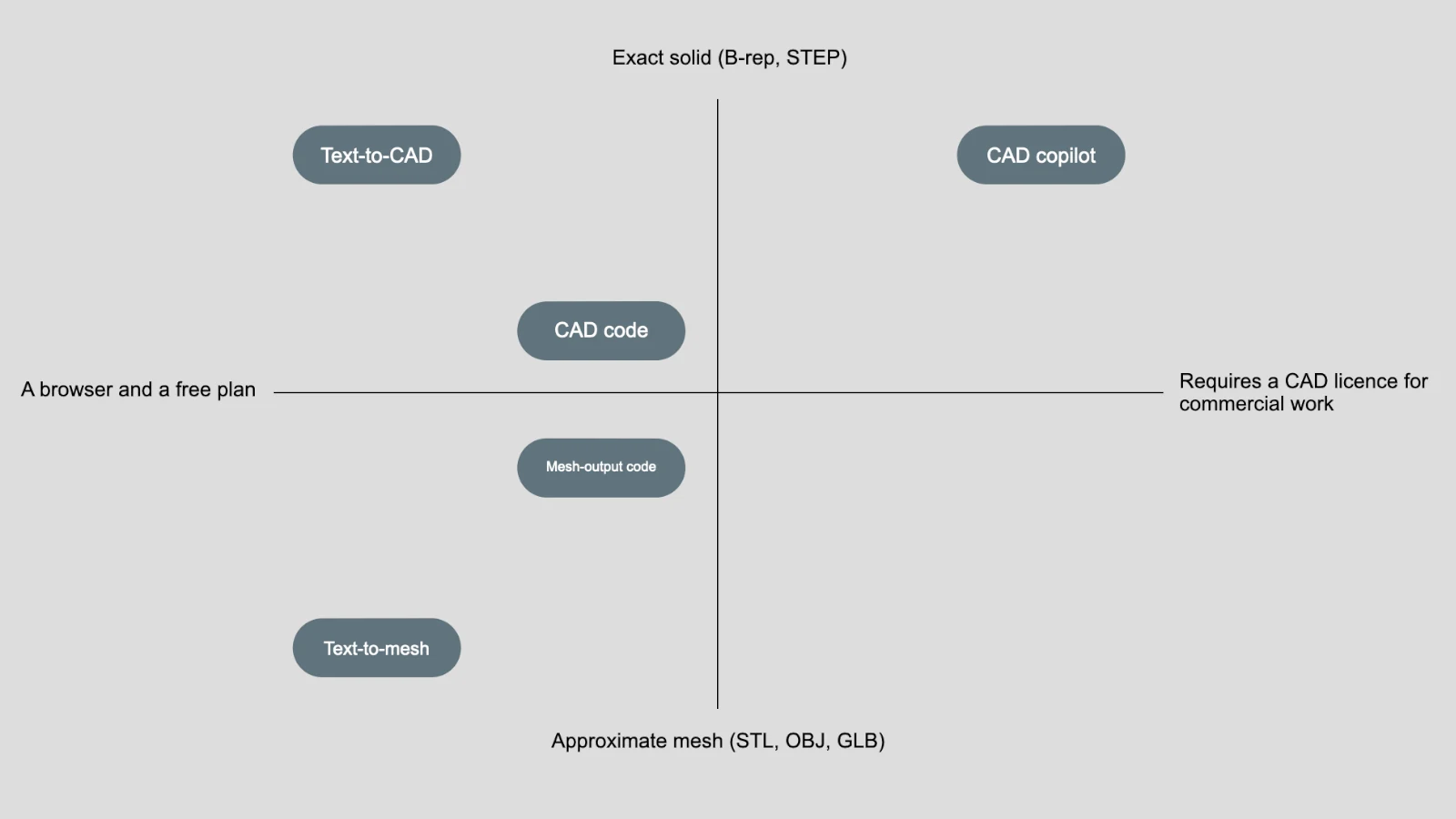
"AI CAD" covers several kinds of tool, and they hand you very different files. The difference decides whether you can measure, edit and manufacture what you get.
| Approach | What you get | Editing afterwards | Good for | In this list |
|---|---|---|---|---|
| Text-to-CAD | Solid models with exact faces and edges, exported as STEP | Select faces, measure, fillet and dimension in any CAD tool | Parts to manufacture, assemblies, CAD handoff | QuantCAD, Zoo Design Studio, BuildCAD AI, TextoCAD |
| Text-to-mesh | Triangle meshes such as STL, OBJ or GLB | Mesh tools, or remodel the part | Renders, games, concept visuals, some prints | None, as these are not CAD tools |
| CAD code | A script, such as KCL or CadQuery, that a CAD kernel runs. Some code tools, such as OpenSCAD, output meshes instead. | Edit the code or its parameters | Parametric parts and repeatable variants | Zoo Design Studio (KCL), TextoCAD (CadQuery) |
| CAD copilot | Commands and features run inside a CAD tool you already use | Native editing in that tool | Faster work on existing models | Adam, Autodesk Assistant, SOLIDWORKS AURA and LEO |
| Engineering knowledge AI | Answers, part search and calculations from your data | Not applicable | Part reuse and design decisions | Leo AI |
What is a B-rep solid, and why does manufacturing use it?
A B-rep (boundary representation) solid describes a part by its exact surfaces, such as planes, cylinders and freeform surfaces, and by the edges and vertices where they meet. A geometry kernel checks that these faces close into one watertight body. A mesh, also called a polygon mesh, approximates the same surface with many small flat polygons, usually triangles. STL, 3MF, OBJ and GLB are mesh formats.
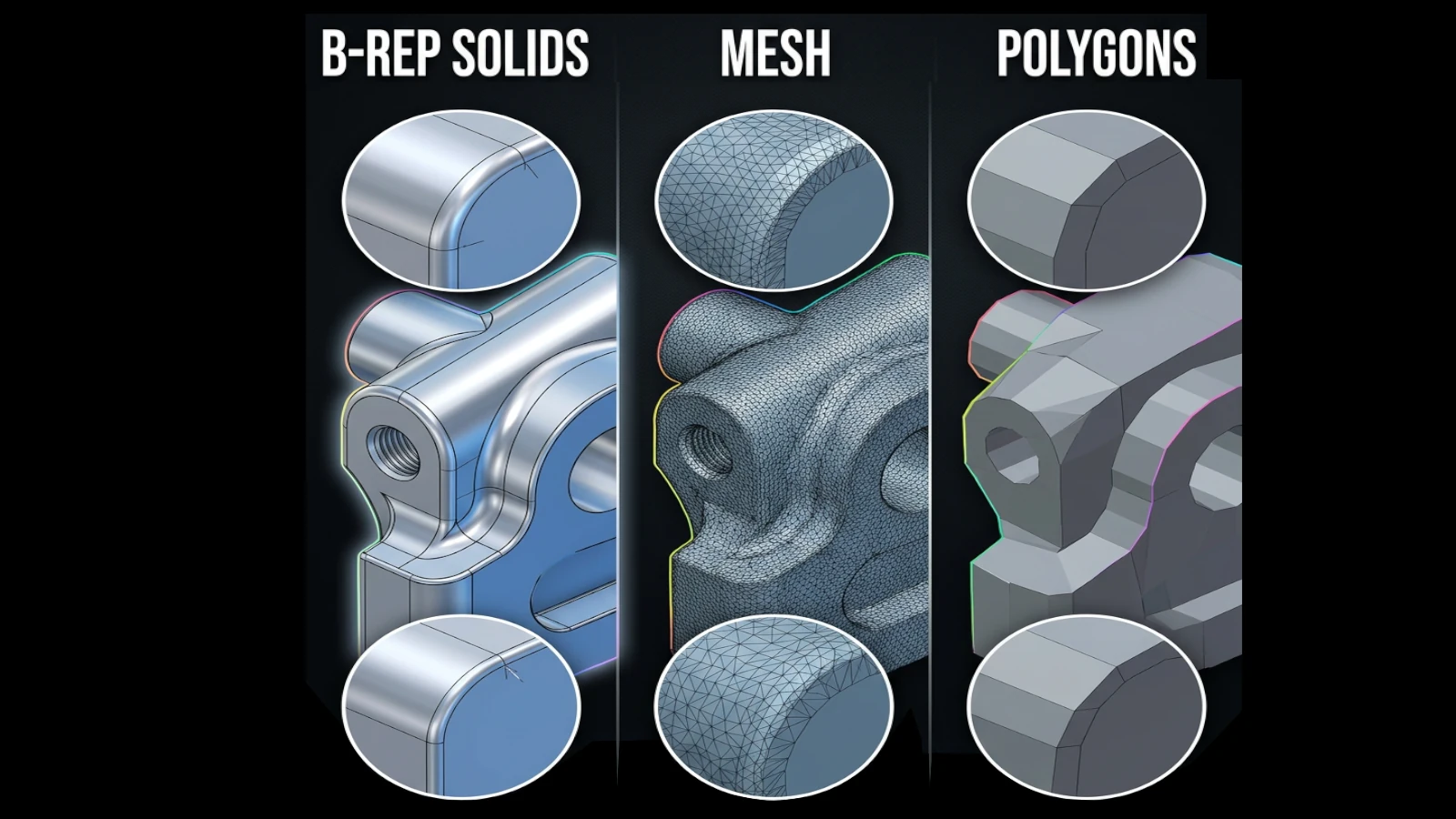
Manufacturing and engineering work from B-rep because the geometry is exact. A hole is a true cylinder with a real axis, not a ring of flat facets, so you can measure its diameter, place a tolerance on it, machine it, or move it. Volume and mass come out exact, and STEP, the usual exchange format between CAD tools and suppliers, carries this geometry. Meshes are the right choice for 3D printing, where the slicer turns every model into layers anyway, and for renders and games. More in Why B-rep matters: what you actually get when AI generates CAD.
More detail: Text-to-CAD vs text-to-mesh, AI-first CAD vs traditional CAD, QuantCAD vs OpenSCAD and QuantCAD vs CadQuery.
How do you check an AI CAD tool's output in five minutes?
Documentation tells you what a tool says it exports. This check tells you what you actually got, and it works on any tool in this list.
- Ask for a simple part with a round hole and a filleted edge, such as a 60 × 40 mm mounting bracket with two 6 mm holes.
- Export STEP. If the tool does not offer STEP, you have a mesh or code, not a solid.
- Open the file in the CAD tool you use, such as FreeCAD, Fusion, Onshape or SOLIDWORKS.
- Click the inside of a hole. One cylindrical face should highlight, not a strip of flat faces.
- Measure the hole. It should read the diameter you asked for.
- Add a 2 mm fillet to an edge. If your CAD tool can compute it, the surfaces are real.
- Check the face count. A simple bracket has a few dozen faces. Thousands means a mesh inside a STEP file.
The reasons behind each step are in Why B-rep matters. If you already have a mesh, see How to convert an AI-generated mesh to STEP.
Frequently asked questions
What is the best AI CAD tool in 2026?
It depends on the output you need. For new parts and assemblies from a prompt, with STEP export, look at text-to-CAD tools such as QuantCAD or Zoo Design Studio. For printable parts with sliders, BuildCAD AI. For free use on your own AI key, TextoCAD. For AI inside existing CAD, Adam, Fusion or SOLIDWORKS. For company engineering data, Leo AI.
Is there a free AI CAD tool?
Yes. TextoCAD is free after 2 generations if you use your own AI API key. BuildCAD AI starts with 200 free credits. Zoo Design Studio includes 20 agent minutes a month. QuantCAD has a Free plan, not a time-limited trial: a 5-credit signup bonus plus 5 credits a day, up to 25 a month, for the first 2 months, and the credits do not expire. Onshape and Autodesk Fusion are free for non-commercial personal use.
Can AI generate a STEP file from a text prompt?
Yes, if the tool builds solid geometry. Text-to-CAD tools such as QuantCAD, Zoo Design Studio, BuildCAD AI and TextoCAD export STEP files from a prompt. Text-to-mesh generators do not: their STL or GLB output can be converted to STEP, but the faces stay flat triangles, so holes and curves are not true surfaces.
What is the difference between text-to-CAD and text-to-mesh?
Text-to-CAD produces solids with exact faces and edges, so a hole is a true cylinder you can measure, fillet and dimension in any CAD tool. Text-to-mesh produces triangles that only approximate the surface. Meshes suit renders and some 3D prints. Solids suit parts you need to edit or manufacture.
Can AI CAD tools create multi-part assemblies?
Some can. QuantCAD plans and builds a full assembly from one prompt in Build auto mode. Zoo Design Studio exports designs with several bodies to STEP as assemblies. BuildCAD AI's FAQ says you can describe an assembly. SOLIDWORKS includes an AI assembly structure generator inside its assembly tools.
Does Autodesk Fusion have AI?
Yes. Autodesk Assistant is built into Fusion. It takes natural-language requests to create sketches, extrude profiles, add fillets, chamfers and holes, and it answers questions about Fusion tools and manufacturing. Autodesk says it confirms changes before applying them and does not add sketch dimensions or constraints. Agentic tasks use a monthly token quota.
Does SOLIDWORKS have AI?
Yes. Commercial SOLIDWORKS Design licenses include two AI virtual companions, AURA and LEO, with skills such as Command Predictor, Auto-Fastener Recognition, Generative Drawings and an AI-Powered Assembly Structure Generator. AI use is metered in Blue Tokens. SOLIDWORKS LEO is not related to the separate product Leo AI.
Which AI CAD tool is best for 3D printing?
For functional prints, BuildCAD AI exports STL and 3MF for your slicer and lets you adjust dimensions with sliders. QuantCAD exports STL in three quality presets, plus STEP. Zoo Design Studio and TextoCAD also export STL. For decorative or organic shapes, a text-to-mesh generator may suit you better.
Will AI replace traditional CAD software?
Not today. AI CAD tools help most with first versions, variants and routine steps. Drawings, GD&T, tolerance decisions and detailed constraints still happen in traditional CAD, and generated geometry should always be checked before manufacturing. Many teams use both: AI to start a design and traditional CAD to finish it.
Is AI-generated CAD accurate enough for manufacturing?
It can be a good starting point, but check it first. Open the STEP file, measure the critical dimensions, check wall thickness and hole positions against your process, and confirm the fits between parts. A solid model makes that check possible. A mesh only approximates the surfaces you need to measure.
Sources
- QuantCAD: pricing and What is text-to-CAD?
- Zoo: pricing, Enterprise, Zookeeper and export documentation, system requirements and FAQ
- BuildCAD AI: home page, pricing and FAQ
- TextoCAD: home page and FAQ and pricing
- Adam: home page, pricing, CADAM, SOLIDWORKS connector and Fusion add-in
- Autodesk Fusion: subscription FAQ, Autodesk Assistant FAQ, Fusion for personal use, system requirements, internet requirement and release notes
- SOLIDWORKS: SOLIDWORKS Design pricing, Blue Tokens, system requirements and AI virtual companions
- Onshape: pricing, AI Advisor and hardware recommendations
- Leo AI: home page, downloads and AI for mechanical engineering
- STEP AP242: ISO 10303-242:2025
- Open CASCADE Technology: dev.opencascade.org
Product names are trademarks of their respective owners. QuantCAD is not affiliated with or endorsed by any of the companies listed. The "best for" or similar picks and verdicts are our own conclusions from this research. Plans and features change, so check the vendor's page before you buy.
What changed
- 29 October 2026: first published. Prices and features checked on each vendor's official pages.
Spotted an outdated price or a product change? Contact us and we will check it and update this page.