QuantCAD vs BuildCAD AI
QuantCAD and BuildCAD AI both turn a text description into a solid CAD model with STEP and STL export, in a web browser. QuantCAD builds a complete multi-part product assembly from one prompt and checks it for interference and fit. BuildCAD AI is built for 3D-printable parts: it writes a parametric model, measures it against your requirements and gives you sliders for the dimensions that matter.
Last updated by the QuantCAD team. We make QuantCAD.
When to use each tool
Choose QuantCAD if you want
- A complete product assembly from one prompt, with housings, internal parts, fasteners and wiring
- Products with many parts, such as the 36-part smartwatch and 46-part laptop in our examples
- Each assembly checked for interference and fit before you get it
- A product dashboard with lifecycle stages, revisions and traceability
- One up-front charge per assembly
- STEP AP242 for your CAD tool or supplier, and STL for your 3D printer
Choose BuildCAD AI if you want
- Single 3D-printable parts such as brackets, mounts, enclosures and adapters
- Sliders to change dimensions without using credits
- 3MF export for your slicer
- Photos or sketches as input
- To design from Claude or Cursor through its free MCP connector
- Moving parts turned through their range and checked for collisions
How do QuantCAD and BuildCAD AI compare?
| Aspect | QuantCAD | BuildCAD AI |
|---|---|---|
| Best for | Turning a text prompt into a complete multi-part assembly of editable B-rep solids, in a web browser, with STEP and STL export. | Functional 3D-printable parts with slider edits and 3MF export. |
| What it is | A text-to-CAD platform in the web browser. | A browser-based AI CAD agent built for 3D-printable parts. |
| Input | A description in plain language. Image upload on Enterprise plans. | Text, photos or sketches, with the measurements you know. |
| Geometry | B-rep solids on the Open CASCADE kernel. | A parametric build123d model, Python on the OpenCascade kernel, with named parameters. |
| Assemblies | Yes. One prompt can produce a complete assembly with housings, internal parts, fasteners and wiring. Our published examples have 36 and 46 parts. | Multi-part designs such as a case and its lid, a gear pair or a hinged box. Its guide says large assemblies with many interacting parts are still faster in a parametric CAD tool. |
| Checks before you get the result | The assembly is checked for interference between parts, floating or unseated parts, gaps between mating parts and parts outside the housing. Parts that fail are reworked in the same run. | Each requirement in your request is measured on the model, and the model is rebuilt at every slider's minimum and maximum. |
| Parts that move | Hinged parts, such as a laptop lid, are built as separate solids around the hinge line and can be shown open. No motion simulation. | Moving parts are turned through their range, with every pose checked for collisions. |
| Editing | Describe the change in the chat. Each change is saved as a revision. The STEP file opens as solids in other CAD tools. | Sliders for the named parameters, and a chat for other changes. |
| Exports | STEP AP242, in millimetres, and STL in Draft, Normal or High quality. | STEP, STL and 3MF. |
| Where it runs | Any modern web browser on a computer, tablet or phone. Nothing to install. | A web browser, plus an MCP connector for Claude, Cursor and other AI assistants. |
| Skills needed | No CAD or coding experience. | No CAD skills. Measurements in the request improve the result. |
| Product management | A product dashboard with lifecycle stages from Draft to Released, revision history and traceability. | Saved versions of each design. |
| Free plan | 120 credits at signup and 100 every month, on the same AI models as the paid plans. Includes Build auto mode and STEP and STL exports. | 200 free credits for new accounts. The MCP connector is free with your own AI subscription. |
| Paid plans | Pro $29 a month, or $26 a month billed yearly. Business $59 a month, or $54 a month billed yearly. VAT included. | Maker $12 a month with 1,200 credits and Pro $29 a month with 3,500 credits. Credit packs from $5 for 400 credits. |
| How AI use is charged | Credits per prompt. A complete assembly in Build auto mode is one up-front charge, typically 80, 140 or 220 credits, that includes the checks and any rework. | Each request is charged by what it uses, typically 30 to 150 credits, with 1 credit worth $0.01. A request stops and asks before going past 300 credits. |
| Commercial use | Allowed on every plan, including Free, with no watermarks. | You own your designs on every plan and can sell the prints. Free-plan videos and GIFs carry a small BuildCAD mark. |
| Limits | No 2D drawings or GD&T. No sliders or 3MF. Changes are made by prompt. Free-plan models may appear in the public catalog. | Built for 3D-printable parts. Not meant for sculpted or decorative shapes, per BuildCAD AI. |
BuildCAD AI facts come from BuildCAD AI's own website, checked Nov 10, 2026: BuildCAD AI home page, BuildCAD AI text-to-CAD guide, BuildCAD AI terms of service, BuildCAD AI MCP server. This page compares documented features and published prices, not the quality of each tool's output. Prices are list prices in US dollars; BuildCAD AI shows prices in your local currency. QuantCAD credit amounts are typical, not fixed prices. QuantCAD is not affiliated with BuildCAD AI.
Text to assembly: a complete product from one prompt
In Build auto mode, you describe the whole product once. Build auto mode turns one prompt into a complete multi-part assembly of B-rep solids, including housings, internal parts, fasteners and wiring. It plans the parts and how they fit together, builds each part, then checks the whole assembly for interference between parts, floating or unseated parts, gaps between mating parts and parts outside the housing, and reworks the parts that fail. It all runs in one action, for one up-front charge.
Our published examples include a wheel bolt built as 1 solid in 42 seconds, a 36-part smartwatch in 13 minutes 48 seconds and a 46-part 15-inch laptop in 14 minutes 34 seconds, each from one prompt. The STEP and STL files are in the Build auto mode worked examples, so you can open the solids in your own CAD tool.
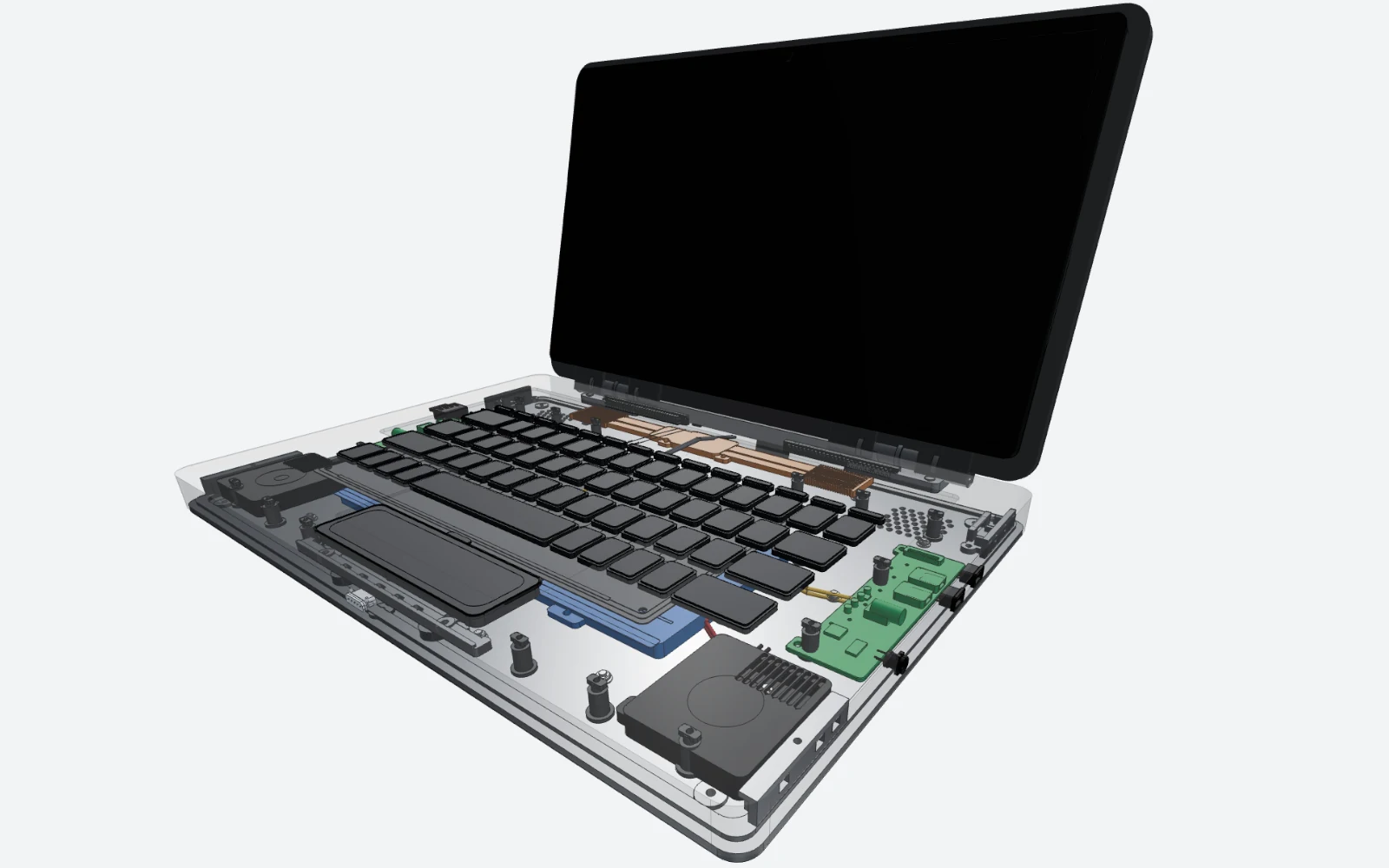
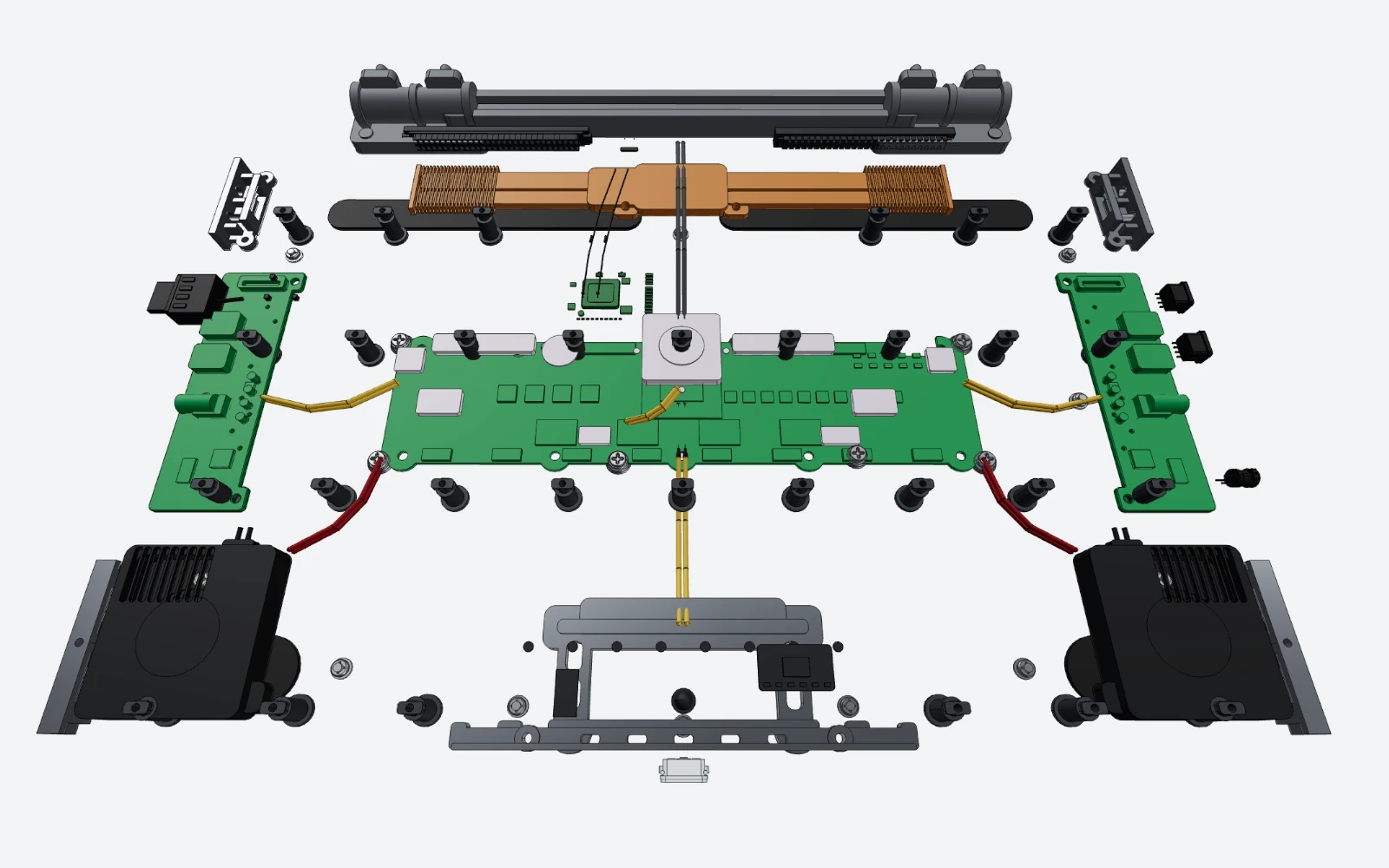
BuildCAD AI's own text-to-CAD guide says large assemblies with many interacting parts are still faster in a parametric CAD tool. Those are the products Build auto mode is made for: it plans the parts and how they fit together, then builds and checks them in one action. If you would rather build the product step by step, Build manual mode suggests a milestone plan and builds one milestone at a time.
For parts that move, the two tools work differently. QuantCAD builds hinged parts, such as a laptop lid, as separate solids around the hinge line and can show the assembly open; it checks the assembly in its closed position and does not simulate motion. BuildCAD AI says it turns moving parts through their range and checks every pose for collisions.
Editable B-rep solids you can measure and export
QuantCAD builds every part as a B-rep solid on the Open CASCADE kernel. Faces, edges and holes are stored exactly, so a round hole is a true cylinder, not a ring of flat triangles. In the 3D viewer you can measure distances, angles and lengths, cut the model with clipping planes and hide parts to see inside.
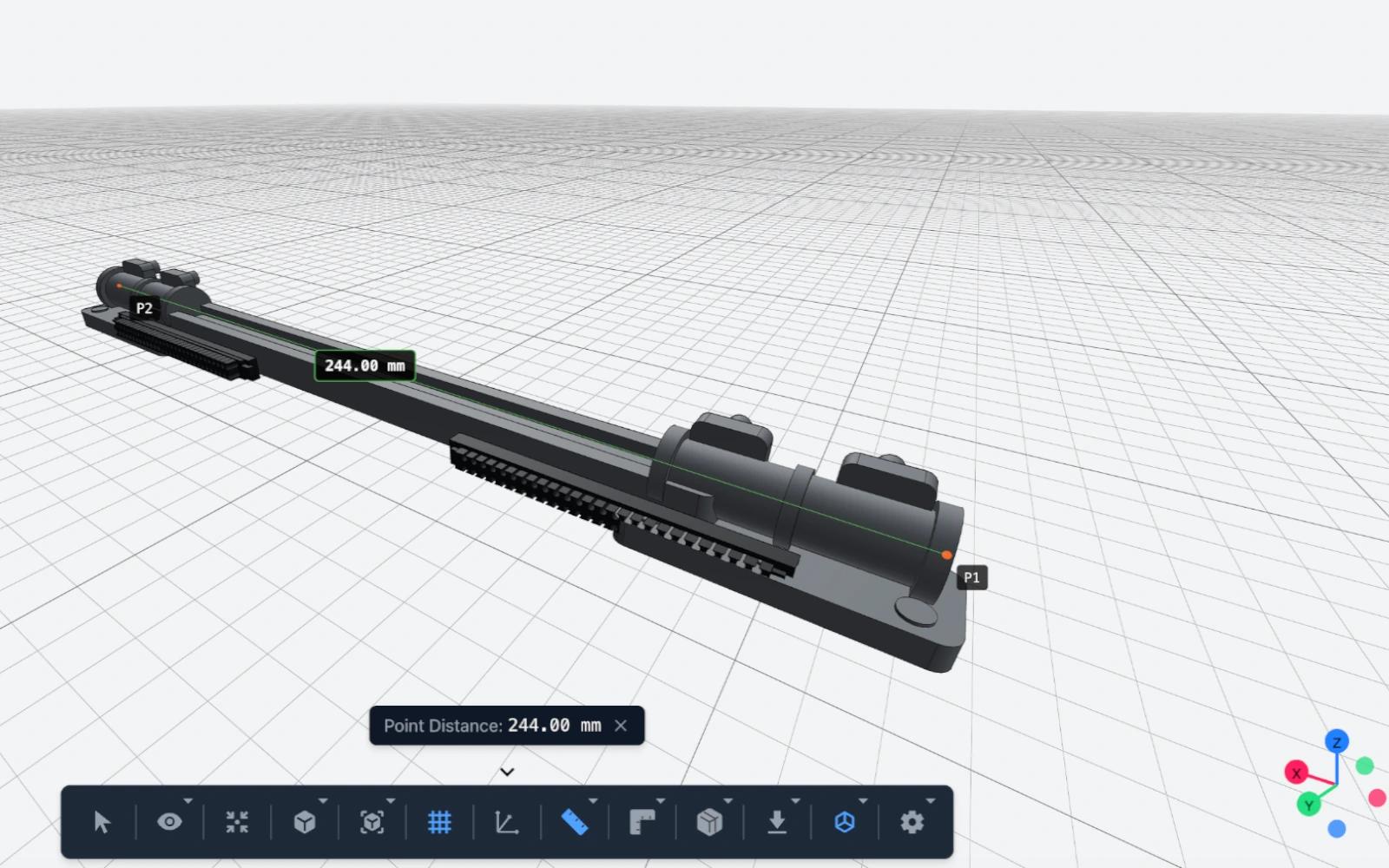
When you are done, download STEP (AP242, in millimetres). It opens as solids in SolidWorks, Fusion, Onshape, FreeCAD, Inventor, CATIA and NX, where you can measure, fillet, cut and dimension it. Like any STEP file, it carries the geometry, not the feature history. In QuantCAD you change the model by describing the change, and each change is saved as a revision you can go back to.
Which is better for 3D printing?
Both export STL. QuantCAD offers STL in Draft, Normal or High quality, and BuildCAD AI adds 3MF. For one printable part with dimensions you want to adjust, such as a bracket or a mount, BuildCAD AI's sliders are a good fit. For a product made of several printed and bought parts, QuantCAD builds the whole assembly, so you can check how the parts fit before you print any of them. More on printing is in AI CAD for 3D printing.
Start free in under two minutes, with every core feature
Sign up and start your first build in under two minutes, with no credit card and nothing to install. The Free plan gives you 120 credits at signup and 100 every month, on the same AI models as the paid plans, and includes every core feature: Build auto and manual mode, the 3D viewer, revisions and the product dashboard.
- STEP and STL exports are never limited, watermarked or charged.
- Every plan, including Free, allows commercial use of what you make.
- Pro and Business add more monthly credits, private projects and the Max reasoning level.
- On the Free plan, your models and project names may appear in our public catalog. Paid plans keep every project private.
A complete assembly in Build auto mode is one up-front charge, typically 80, 140 or 220 credits depending on its size, and the checks and any rework are included. Pro's 1,000 monthly credits cover up to 12 complete assemblies a month, about $2.32 to $6.38 per assembly. These are typical amounts, not fixed prices. The cost of each prompt depends on how complex the request is and on its reasoning level, so it can vary from prompt to prompt. The Usage page in your dashboard shows what each prompt cost.
BuildCAD AI charges each request by what it uses. One credit is $0.01 of its list price, and a request typically uses 30 to 150 credits, so a single small part can cost less there. Credits are sized differently in each product, so compare what a plan produces, not the numbers.
Can you use QuantCAD and BuildCAD AI together?
Yes. Both export STEP, so parts from each open as solids in the same CAD tool. Use BuildCAD AI for a one-off printable part you want to adjust with sliders, and QuantCAD for the complete product it fits into.
Which should you choose?
QuantCAD is best for turning a text prompt into a complete multi-part assembly of editable B-rep solids, in a web browser, with STEP and STL export. Choose it when you want a finished, checked assembly from a description, without CAD or coding experience. Choose BuildCAD AI when you want a single 3D-printable part with sliders and 3MF export.
Frequently asked questions
What is the difference between QuantCAD and BuildCAD AI?
QuantCAD turns one text prompt into a complete multi-part product assembly of B-rep solids and checks it for interference and fit. BuildCAD AI turns a description or a photo into a parametric model of a 3D-printable part, measures it against your requirements and gives you sliders for its dimensions. Both run in a web browser and export STEP and STL; BuildCAD AI also exports 3MF.
Is QuantCAD a good alternative to BuildCAD AI?
Yes, when the job is a whole product rather than a single part. QuantCAD builds complete assemblies with housings, internal parts, fasteners and wiring from one prompt, and adds a product dashboard with lifecycle stages and revision history. For one printable part you want to adjust with sliders, or for 3MF export, BuildCAD AI is the better fit.
Is QuantCAD or BuildCAD AI better for CAD assemblies?
For a complete product assembly from one prompt, QuantCAD. Build auto mode plans the parts and how they fit together, builds them as B-rep solids and checks the whole assembly for interference and fit in one action. BuildCAD AI handles multi-part designs such as a case and its lid or a gear pair, and its own guide says large assemblies with many interacting parts are still faster in a parametric CAD tool.
Which is better for 3D printing, QuantCAD or BuildCAD AI?
For a single printable part with dimensions you want to adjust, BuildCAD AI: it gives you sliders and exports STL and 3MF. For a product made of several printed and bought parts, QuantCAD builds the whole assembly so you can check the fit before you print, and exports STL in Draft, Normal or High quality plus STEP.
Can I turn text into a CAD assembly?
Yes. In QuantCAD, describe the whole product in one prompt and choose Build auto mode. Build auto mode turns one prompt into a complete multi-part assembly of B-rep solids, including housings, internal parts, fasteners and wiring. It plans the parts and how they fit together, builds each part, then checks the whole assembly for interference between parts, floating or unseated parts, gaps between mating parts and parts outside the housing, and reworks the parts that fail. It all runs in one action, for one up-front charge. You then download a STEP file with every part as a solid.
Can beginners and non-coders make CAD assemblies?
Yes. QuantCAD needs no CAD or coding experience: you describe the product in plain language and review the result in a 3D viewer. BuildCAD AI also needs no CAD skills, and works best when you include the measurements you know.
Is there an affordable way to make CAD assemblies with AI?
QuantCAD's Free plan includes Build auto mode, with 120 credits at signup and 100 every month. A complete assembly is one up-front charge, typically 80, 140 or 220 credits depending on its size, and the checks and any rework are included. Pro's 1,000 monthly credits cover up to 12 complete assemblies a month, which works out to about $2.32 to $6.38 per assembly. For a single small part, BuildCAD AI's per-request pricing, typically 30 to 150 credits at $0.01 each, can cost less.
Can QuantCAD or BuildCAD AI make assemblies with moving parts?
Both can. QuantCAD builds hinged parts, such as a laptop lid or a flip cover, as separate solids around their hinge line and can show them in an open position; the assembly is checked in its closed position, and QuantCAD does not simulate motion. BuildCAD AI says it turns moving parts through their range and checks every pose for collisions.
Are the exported models editable?
Yes. STEP files from both tools open as solids in CAD tools such as SolidWorks, Fusion, Onshape and FreeCAD, where you can measure, fillet, cut and dimension them. A STEP file carries the geometry, not the feature history. In QuantCAD you change the model by describing the change, and each change is saved as a revision. In BuildCAD AI you change it with sliders or in its chat.
Can I use the models commercially, and are there watermarks?
In QuantCAD, every plan, including Free, allows commercial use with no watermarks, and STEP and STL exports are never limited or charged. BuildCAD AI's terms say you own your designs on every plan and can sell the prints; on its free plan, recorded videos and GIFs carry a small BuildCAD mark.
How fast can I start?
QuantCAD runs in the browser: sign up and start a first build in under two minutes, with no credit card and nothing to install. BuildCAD AI also runs in the browser, and new accounts get 200 free credits.
Related comparisons and guides
The 9 best AI CAD tools in 2026
Nine AI CAD tools compared on output, exports, assemblies, free plans and price.
QuantCAD vs Zoo Design Studio
Complete assemblies from one prompt compared with a CAD app and its AI agent.
AI CAD for 3D printing
Printable parts with exact dimensions, example prompts and STL or STEP export.
Build auto mode guide
How one prompt becomes a checked assembly, with worked examples and STEP files to download.
Mechanical assemblies
Multi-part designs built as B-rep solids and exported to STEP.
Pricing
Free, Pro and Business plans, and what each prompt typically costs.